It installs almost anywhere
Android, Google TV, Fire TV, Windows, macOS, Linux, and — crucially — WebOS and Tizen. The developer publishes a direct download for each platform, so you are never hunting for a sideload of dubious origin.
IPTVSense / Setup guide
The complete walkthrough: installing the application on Android, Fire TV, Windows, macOS and Smart TVs, then loading your IPTVSense playlist through the remote activation portal.
IBO Player is the one application IPTVSense supports, and it is the right choice for a reason: it runs on practically every platform, including the closed-source Smart TVs from Samsung and LG that most players never reach. Playback is smooth, the interface is uncluttered, and the essentials — live grid, programme guide, favourites, on-demand shelf — are all present without a menu maze.
This guide covers installation on each supported platform, then the playlist activation step that trips up most new users. Budget ten minutes end to end. If anything stalls, the support desk will finish the job with you.
Before you begin, have your IPTVSense credentials to hand — they arrive on WhatsApp within about five minutes of a confirmed order. No subscription yet? The reduced opening month at €7.99 is the quickest way in.
Android, Google TV, Fire TV, Windows, macOS, Linux, and — crucially — WebOS and Tizen. The developer publishes a direct download for each platform, so you are never hunting for a sideload of dubious origin.
Samsung and LG televisions run closed operating systems that most player developers avoid entirely. IBO Player ships native builds for both, which removes the need for an extra box under the television.
Rather than typing a long server address with a remote control, you enter your credentials once on the developer's web portal. Their cloud pushes the playlist to the app on your screen. Fiddly the first time, effortless afterwards.
There is no recording function and no split-screen view. The application also carries a small one-off licence fee after an initial evaluation window, paid to the developer rather than to us. We would rather say so here than let you discover it later.
Open the IBO Player official site in your browser and take the Android package from the download section.
Android warns you because the file did not come from its own store. The file is the developer's own build — choose to keep it and continue.
Tap the downloaded package, confirm the install prompt, and wait a few seconds for it to finish.
The first run shows a short explanatory screen about playlists. Acknowledge it; we handle playlists in part two below.
The Windows build requires Windows 10 or newer and is published for 64-bit systems only.
Windows blocks installers that did not come from the Microsoft Store. Choose More info, then Run anyway.
Next, optionally tick the desktop shortcut, then Install. Finish the wizard to open the player straight away.
From the Fire TV home screen, search for Downloader and install it. This is what lets you fetch an app from outside Amazon's own store.
In Settings, open My Fire TV → Developer options → Install unknown apps and switch Downloader on. If Developer options is not visible, open About and press Select on the device name seven times.
Open Downloader, put the cursor in the address field and enter the official IBO Player code 511693, then press Go.
Let the download finish, accept the install prompt, and open the app. Acknowledge the welcome card when it appears.
Take the macOS package from the developer's download section and open it once it lands.
Drop the icon into your Applications folder, then open Launchpad and click it.
macOS refuses the first launch because the app came from outside the App Store. Open System Settings → Privacy & Security, scroll to the security notice and choose Open Anyway. This choice is remembered.
LG Content Store on WebOS sets, or the Apps panel on Samsung Tizen sets.
Use the magnifier and type IBO Player. Several similarly named entries exist — select the one titled exactly "Ibo Player" and ignore the rest.
Install, then Launch. A welcome message appears on first run; acknowledge it and move to part two.
IBO Player uses remote playlist activation. Instead of typing credentials into the television, you log into the developer's web portal with two identifiers taken from the app, add your playlist there, and their cloud pushes it to your screen.
Open the app, go to the profile or device-info icon on the dashboard, and note the two values shown in the top-left panel. These are unique to your installation.
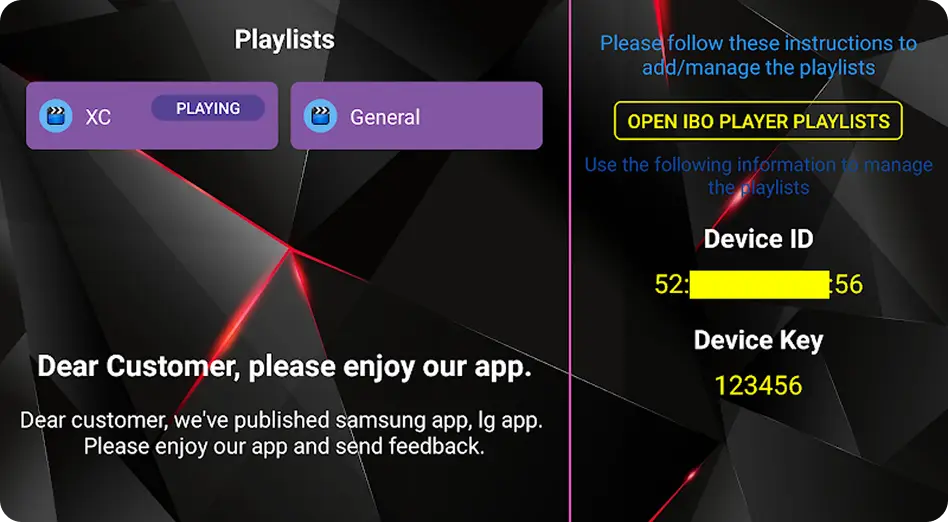
On a phone or computer, open the IBO Player website and choose Manage Playlists. Enter the Device ID (MAC address) and Device Key from the previous step and log in.
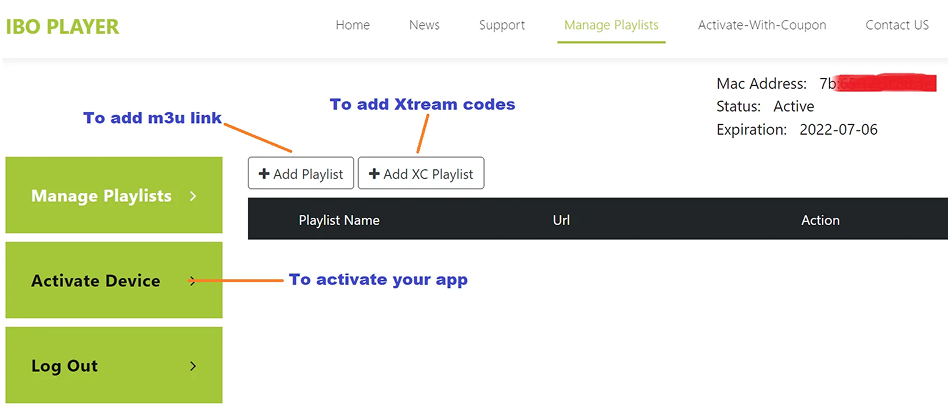
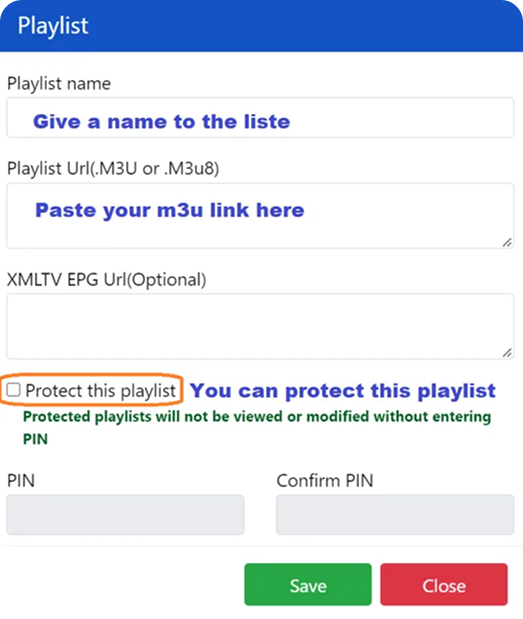
If IPTVSense supplied you with a single long streaming link, choose Add Playlist. Give the list a name, paste the link into the URL field, and leave the EPG field empty unless you have your own guide source — the player pulls our programme guide automatically. Optionally tick Protect this playlist and set a PIN. Save.
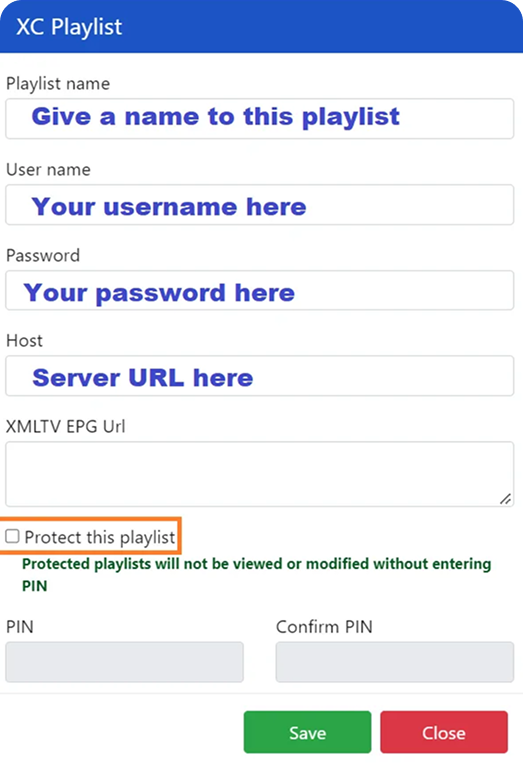
If we sent you a username, password and host separately, choose Add XC Playlist instead. The fields are the same as above with one addition — Host, which is the server address from your credentials email. Save when done.
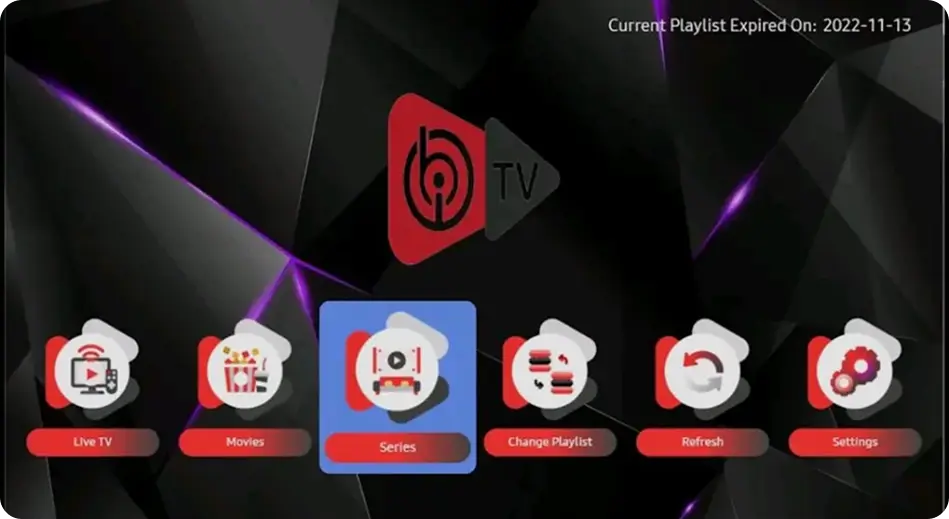
Close and relaunch the player. The dashboard now shows Live TV, Movies and Series tiles populated with your IPTVSense library. If it does not, use the refresh control at the foot of the dashboard.
One device per subscription. Your credentials bind to the device you activate. If you replace your television or box, message the support desk and we will release the old binding so the new hardware can take over.
By default the live grid uses a layout in which channel names run under the preview window and the guide column sits awkwardly. It is a two-click fix. From the dashboard, open the screen icon beside the Wi-Fi indicator to reach Live Screen Style, switch the setting to the alternative layout, and save. Channel names get room to breathe and the mini-preview and programme guide line up properly. Press the left arrow on the remote whenever you want the category column back.
From the channel listing, press and hold Select on any channel and choose Add. A heart marker confirms it. Your favourites folder sits at the top of the category column, which turns a 58,500-channel grid into the fifteen channels you actually watch.
The search control in the lower-left corner of the live overview looks across every category at once. It matches on specific terms rather than fuzzily, so type the channel name as it appears in the guide, or a clean fragment of it.
The Movies and Series sections default to newest additions first. Three controls sit top right: a palette icon that toggles between the modern and classic presentation, an arrow that re-sorts by date, rating or alphabetically, and a magnifier for search. Press and hold Select on any title to drop it into favourites.
The M3U tile on the dashboard stores every playlist attached to your device, with the Device ID and Device Key shown top right for reference. From here you can refresh a playlist's content, remove it, or add another. If you set a PIN when adding the list, you will be asked for it before this section opens.
| Symptom | Most likely cause | What to do |
|---|---|---|
| Dashboard loads but tiles are empty | Playlist saved in the portal but not yet pulled by the app | Close the app fully and reopen it, then use the dashboard refresh control |
| One channel stutters, the rest are fine | A single delivery route under strain | Message the desk with the channel name and time; we rebalance your line |
| Everything buffers in the evening | Household bandwidth contention | Move to a wired connection, or drop to the Full HD tier on that television |
| Guide data is blank | EPG field filled with a third-party source | Clear the XMLTV field in the portal and save; our guide loads automatically |
| App refuses to launch after a TV update | Cached build out of date | Reinstall from your television's app store; your playlist stays in the portal |
Anything not on this list, or a fix that did not hold? Write to the support desk with your device, the channel and the approximate time. Line speed guidance per quality tier is on the channel map.
That is the whole process. If you have not taken a subscription yet, the reduced introductory month is the least expensive way to see how the picture holds on your own television and your own connection. Full terms sit on the subscriptions page.